Universal Links stopped working after a deploy? Debugging AASA and assetlinks.json in production
Links that worked in TestFlight break in production. The ways apple-app-site-association and assetlinks.json fail after a deploy, and the command for each.
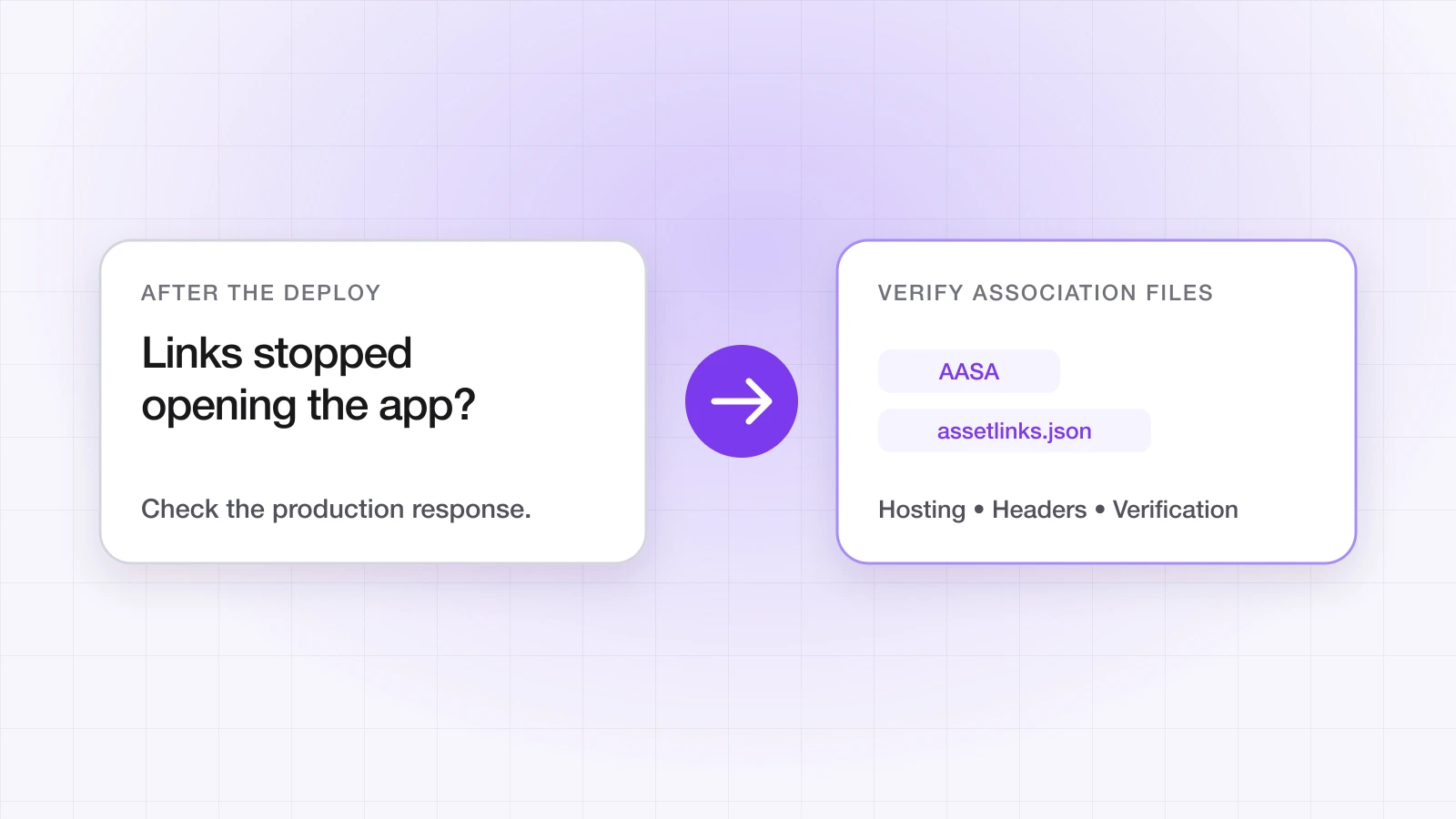
Your Universal Links stopped working after a deploy. Or they work on some devices and not others. Or they worked in TestFlight and broke in production.
The cause is almost always one of two files: apple-app-site-association (AASA) on iOS, or assetlinks.json on Android. They're how the operating system confirms your domain is allowed to open your app. When they're misconfigured, served wrongly or stale in a cache, the OS quietly opens the browser instead — and reports no error.
“The single most useful command: curl -sIL https://yourdomain.com/.well-known/apple-app-site-association. Anything other than one HTTP 200, served as application/json, with no redirect in the chain, is your problem.”
Setup guides explain how to create these files — our App Links vs Universal Links guide covers that. This post is about why they fail in production, and the command that finds each failure.
Why does the AASA file fail on iOS?
1. It's served with the wrong Content-Type
The most common production failure after a CDN or hosting change. Serve the file as application/json. A server that falls back to text/plain or text/html for a file with no extension can stop iOS from using it.
curl -sI https://yourdomain.com/.well-known/apple-app-site-association | grep -i content-type
# Expect: content-type: application/json
Fix: set the Content-Type explicitly for that path in your server or CDN configuration.
2. There's a redirect in front of it
Apple doesn't follow redirects when it fetches your AASA. A rule that redirects HTTP to HTTPS, or the bare domain to www, can put a redirect in front of the file without anyone noticing.
curl -sIL https://yourdomain.com/.well-known/apple-app-site-association | grep -iE '^HTTP|^location'
# More than one HTTP status line means there's a redirect in the chain
Fix: serve the file directly at that path with no redirect — on every host you list in Associated Domains, including www if you use it.
3. Apple's CDN is serving an older version
For apps installed from the App Store or TestFlight, iOS doesn't fetch the AASA from your server — it fetches Apple's cached copy. After you change the file, the CDN can keep serving the old one for a while, and there's no way to purge it. Check what Apple has:
curl -s https://app-site-association.cdn-apple.com/a/v1/yourdomain.com
# If this differs from the file on your server, Apple hasn't picked up the change yet
While testing: add ?mode=developer to the applinks entry and turn on Associated Domains Development in the device's developer settings. The device then fetches the file from your server directly, bypassing the CDN. Remove it before release. Apple's TN3155: Debugging universal links covers the CDN in detail.
4. The appIDs are missing the Team ID
Each entry in appIDs must be your Team ID followed by the bundle identifier. A bare bundle ID is a silent failure: the file is served perfectly, and iOS never matches it to your app.
{
  "applinks": {
    "details": [
      { "appIDs": ["ABCDE12345.com.yourapp.bundle"], "components": [{ "/": "/*" }] }
    ]
  }
}
Your Team ID is on the Membership page of your Apple Developer account.
5. A wildcard doesn't cover the bare domain
An entitlement of applinks:*.yourdomain.com matches subdomains, not yourdomain.com itself. If both should open the app, list both — a common miss when adding a custom domain or moving providers.
applinks:yourdomain.com
applinks:*.yourdomain.com
Why does assetlinks.json fail on Android?
1. The device never verified the domain
Android verifies App Links ahead of time and keeps the verdict. If verification failed, links to your domain open the browser. On Android 12 and later you can ask the device what it decided:
adb shell pm get-app-links com.yourapp.package
# Your domain should show as verified
If it isn't verified, check the file itself before anything else.
2. A signing fingerprint is missing
The sha256_cert_fingerprints list must include the key that signed the installed build. Store builds are re-signed with Google's app signing key; sideloaded release builds carry your upload key; debug builds carry each machine's debug key. The one people miss is the Play App Signing key — take it from the app signing page in the Play Console, not from your keystore.
# Fingerprint of an APK you built
apksigner verify --print-certs app-release.apk | grep SHA-256
[{
"relation": ["delegate_permission/common.handle_all_urls"],
"target": {
"namespace": "android_app",
"package_name": "com.yourapp.package",
"sha256_cert_fingerprints": [
"AA:BB:CC:...",
"DD:EE:FF:..."
]
}
}]3. The file was unreachable when the app was installed
Verification happens around install time. If assetlinks.json was unavailable during that window — a deploy that briefly returned a 404 or 503 — devices that installed then can be left unverified, and links open the browser until verification runs again. On a test device, force it:
adb shell pm verify-app-links --re-verify com.yourapp.package“Treat apple-app-site-association and assetlinks.json as critical infrastructure. A deploy that takes either file offline, even briefly, can break links for everyone who installs in that window.”
How do you catch this before users do?
Check both files on every deploy — a curl for status, Content-Type and redirects can run in CI and fail the release — and run your domain through the Universal Links validator, which flags all of the above in one pass. If you use a LinkTrail link domain, LinkTrail generates and hosts both files from the app credentials you registered and regenerates them when you add a bundle ID or fingerprint; changes are made in the dashboard rather than in a file. Managing link verification across multiple apps covers the multi-build case.
Ahsan Ali
Writes about deep linking & attribution
Ahsan Ali works with the teams integrating LinkTrail's iOS, Android, React Native, and Flutter SDKs, which is where most of what he writes here starts: deferred deep linking, install attribution after ATT, and the parts of the mobile growth stack the category tends to leave vague.