Deferred deep linking in Flutter: one Dart API for iOS and Android
Set up deferred deep linking in a Flutter app: the plugin, platform setup for App Links and Universal Links, the iOS paste button, consent and testing.
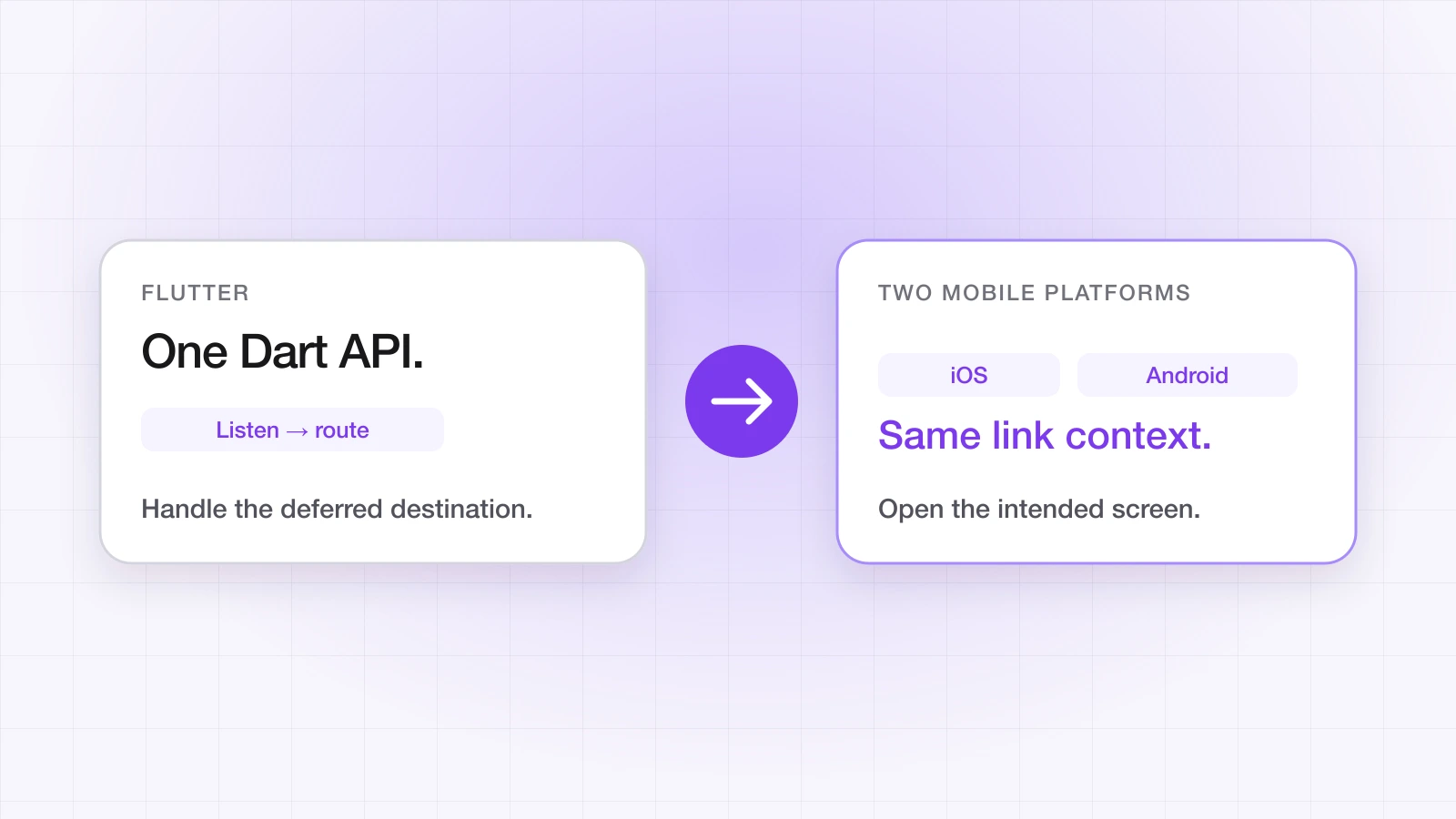
A user taps your link, installs your Flutter app from the App Store or Google Play, and the first open lands on the screen the link was about. That's deferred deep linking. In Flutter it's one Dart API over both platforms, but the platforms still differ underneath — and that's where most setups go wrong.
How does it work across iOS and Android?
linktrail_flutter is a thin plugin over LinkTrail's native iOS and Android SDKs. On Android, the deferred link comes through Google Play's Install Referrer, so the match is deterministic. On iOS there's no equivalent, so the tapped link leaves a click token on the clipboard and the app reads it back on first launch through a paste control. Your Dart code sees one stream either way.
Step 1: Add the plugin
flutter pub add linktrail_flutterThe native SDKs come in automatically. The minimums are Android minSdk 26 and iOS 15 — set them if your app targets lower.
Step 2: Listen before you configure
Subscribe to onLink before calling configure, so a link delivered during start-up isn't missed. The same stream fires for deferred links on first launch and for links opened while the app is installed:
import 'package:linktrail_flutter/linktrail_flutter.dart';

Future<void> main() async {
  WidgetsFlutterBinding.ensureInitialized();

  LinkTrail.onLink.listen((event) {
    router.route(event.link.path, event.link.customData);
  });
  LinkTrail.onError.listen((error) => debugPrint('LinkTrail: $error'));

  // The API key is required. The install is tracked automatically.
  await LinkTrail.configure(apiKey: 'lt_live_...');

  runApp(const MyApp());
}
Route from event.link.path — the in-app destination configured on the link — not from the URL that was tapped, which is the link's short path on your link domain. If your router isn't ready when the event arrives, hold the path and navigate once it is.
Step 3: Platform setup
The plugin captures incoming links itself — there's no MainActivity or AppDelegate code to write — but each operating system still needs to know your domain belongs to your app.
Android: declare the App Links host in android/app/src/main/AndroidManifest.xml, and register your package name and every SHA-256 signing fingerprint, including Play App Signing, in the dashboard:
<intent-filter android:autoVerify="true">
    <action android:name="android.intent.action.VIEW" />
    <category android:name="android.intent.category.DEFAULT" />
    <category android:name="android.intent.category.BROWSABLE" />
    <data android:scheme="https" android:host="yourapp.linktrail.io" />
</intent-filter>
iOS: in Xcode, add the Associated Domains capability to the Runner target with applinks:yourapp.linktrail.io, and register your Team ID and bundle ID in the dashboard. LinkTrail generates and hosts the association files for both platforms.
Step 4: Render the paste button on iOS
On iOS, the default way to read the click token is a paste control the user taps, which avoids the system's 'Allow Paste' alert. Render LinkTrailPasteButton on your first-launch screen and turn off automatic install tracking, because the install is tracked when the token arrives. The widget renders nothing on Android, where the Install Referrer does the job:
await LinkTrail.configure(
  apiKey: 'lt_live_...',
  options: LinkTrailOptions(autoTrackInstall: false),
);

// On the first-launch screen:
LinkTrailPasteButton(
  width: 240,
  onToken: (token) async {
    await LinkTrail.trackInstallWithClickToken(token);
  },
)
If you'd rather not show a button, set clickTokenSource to automatic: the SDK reads the clipboard itself and iOS shows its paste alert. Apple doesn't allow custom label text, fonts or borders on the control.
Step 5: Consent
Consent gating is on by default: links route, and attribution waits for the user's decision. On Android a fresh install's deferred link is held until your app records that decision, so wire your consent prompt to the SDK on every path through onboarding — the Flutter SDK page has the options.
How do you test it?
- Android: install through a Play testing track — a build run from your IDE has no Install Referrer. Check verification with
adb shell pm get-app-links your.package.name. - iOS: delete the app, tap the link in Notes, install, open, and tap the paste button. Pasting the link into Safari's address bar never opens an app.
- Both: keep an onError listener logging during every run — an invalid API key fails silently until it arrives there.
Why isn't it working?
- The app opens on the wrong screen. You're routing from the tapped URL instead of event.link.path.
- The first link after install is missed. onLink was subscribed after configure.
- New iOS installs land on the home screen. LinkTrailPasteButton isn't rendered, or autoTrackInstall is still on.
- Links open the browser. The domain isn't verified — check the Associated Domains entry, the fingerprints, and the Universal Links validator.
Building in React Native instead? Deep linking in React Native covers the same path there.
Ahsan Ali
Writes about deep linking & attribution
Ahsan Ali works with the teams integrating LinkTrail's iOS, Android, React Native, and Flutter SDKs, which is where most of what he writes here starts: deferred deep linking, install attribution after ATT, and the parts of the mobile growth stack the category tends to leave vague.